> ## Documentation Index
> Fetch the complete documentation index at: https://cometchat-22654f5b-chore-codeowners-swapnil-to-jitvar.mintlify.site/llms.txt
> Use this file to discover all available pages before exploring further.
# Custom Text Formatter
> Extend the CometChatTextFormatter base class to implement custom inline text patterns with regex and callbacks in Angular.
| Field | Value |
| -------------- | ------------------------------------------------------------------------------------------------------------------------------------------------------------------------------------------ |
| Package | `@cometchat/chat-uikit-angular` |
| Key class | `CometChatTextFormatter` (abstract base class for custom formatters) |
| Required setup | `CometChatUIKit.init(uiKitSettings)` then `CometChatUIKit.login("UID")` |
| Purpose | Extend to create custom inline text patterns with regex, styling, and callbacks |
| Features | Text formatting, customizable styles, dynamic text replacement, input field integration, key event callbacks |
| Related | [ShortCut Formatter](/ui-kit/angular/guides/shortcut-formatter) \| [Mentions Formatter](/ui-kit/angular/guides/mentions-formatter) \| [All Guides](/ui-kit/angular/guides/guides-overview) |
`CometChatTextFormatter` is an abstract class for formatting text in the message composer and message bubbles. Extend it to build custom formatters — hashtags, keywords, or any regex-based pattern.
| Capability | Description |
| ------------------- | --------------------------------------------------- |
| Text formatting | Auto-format text based on regex patterns and styles |
| Custom styles | Set colors, fonts, and backgrounds for matched text |
| Dynamic replacement | Regex-based find-and-replace in user input |
| Input integration | Real-time monitoring of the composer input field |
| Key event callbacks | Hooks for `keyUp` and `keyDown` events |
Formatter output is always sanitized (via DOMPurify in the text bubble) before it is rendered — there is no way to bypass sanitization. Make sure your custom HTML is sanitizer-compatible (DOMPurify-safe). Wrapping formatted output in a `` with a CSS class (e.g. `"custom-hashtag"`) is only a styling and identification hook; it does NOT render the output as-is or bypass sanitization.
***
## Steps
### 1. Import the base class
```typescript theme={null}
import { CometChatTextFormatter } from "@cometchat/chat-uikit-angular";
```
### 2. Extend it
```typescript theme={null}
class HashTagTextFormatter extends CometChatTextFormatter {
readonly id = "hashtag-formatter";
override priority = 15;
getRegex(): RegExp {
return /\B#(\w+)\b/g;
}
format(text: string): string {
// Apply formatting logic
return text;
}
}
```
### 3. Implement the regex pattern
Return the regex that matches your target pattern from `getRegex()`:
```typescript theme={null}
getRegex(): RegExp {
return /\B#(\w+)\b/g;
}
```
### 4. Implement the format method
The `format()` method receives the raw text and returns formatted HTML:
```typescript theme={null}
format(text: string): string {
if (!text) {
this.originalText = "";
this.formattedText = "";
return "";
}
this.originalText = text;
this.formattedText = text.replace(
this.getRegex(),
'#$1'
);
return this.formattedText;
}
```
### 5. Optionally implement shouldFormat
Control when the formatter is applied:
```typescript theme={null}
shouldFormat(text: string, message?: CometChat.BaseMessage): boolean {
return this.getRegex().test(text);
}
```
***
## Example
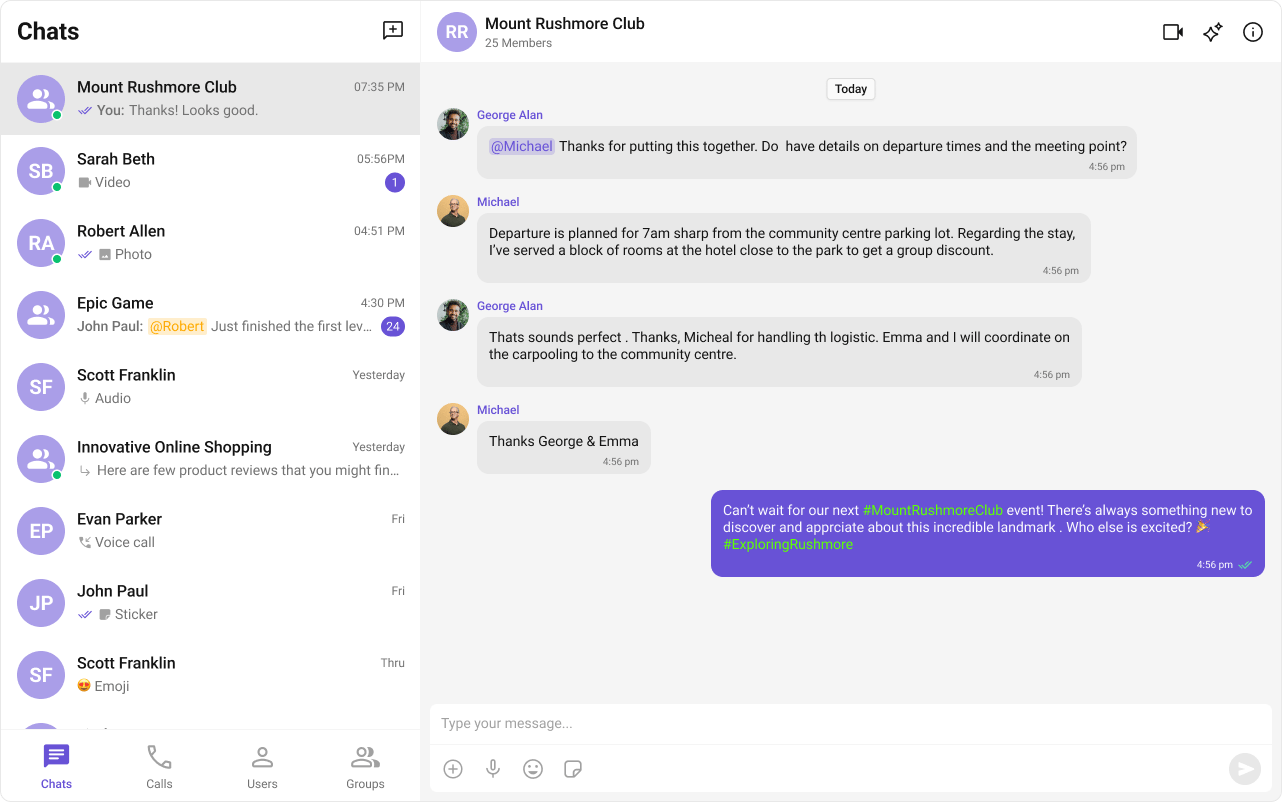
A hashtag formatter used with `cometchat-message-list` and `cometchat-message-composer`.
```typescript expandable theme={null}
import { CometChatTextFormatter } from "@cometchat/chat-uikit-angular";
export class HashTagTextFormatter extends CometChatTextFormatter {
readonly id = "hashtag-text-formatter";
override priority = 15;
private hashtags: string[] = [];
getRegex(): RegExp {
return /\B#(\w+)\b/g;
}
format(text: string): string {
if (!text) {
this.originalText = "";
this.formattedText = "";
this.hashtags = [];
this.metadata = { hashtags: this.hashtags };
return "";
}
this.originalText = text;
this.hashtags = [];
this.formattedText = text.replace(this.getRegex(), (match, tag) => {
this.hashtags.push(`#${tag}`);
return `#${tag}`;
});
this.metadata = { hashtags: this.hashtags };
return this.formattedText;
}
getHashtags(): string[] {
return [...this.hashtags];
}
override reset(): void {
super.reset();
this.hashtags = [];
}
}
```
Pass the formatter via the `textFormatters` input on the message list and composer.
```typescript expandable theme={null}
import { Component, OnInit } from "@angular/core";
import { CometChat } from "@cometchat/chat-sdk-javascript";
import { CometChatMessageListComponent, CometChatMessageComposerComponent } from "@cometchat/chat-uikit-angular";
import { HashTagTextFormatter } from "./HashTagTextFormatter";
@Component({
selector: "app-message-demo",
standalone: true,
imports: [CometChatMessageListComponent, CometChatMessageComposerComponent],
template: `
`,
})
export class MessageDemoComponent implements OnInit {
chatUser: CometChat.User | undefined;
textFormatters = [new HashTagTextFormatter()];
ngOnInit() {
CometChat.getUser("uid").then((user) => {
this.chatUser = user;
});
}
}
```
***
## Methods Reference
| Field | Type | Description |
| ------------------------------ | -------------------------- | ---------------------------------------------------------------------------- |
| `id` | `abstract readonly string` | Unique identifier for the formatter instance |
| `priority` | `number` | Execution order in the pipeline (lower = earlier, default 100) |
| `getRegex()` | `abstract method` | Returns the regex pattern for detecting formattable content |
| `format(text)` | `abstract method` | Applies formatting transformations and returns formatted text |
| `getFormattedText()` | `method` | Returns the stored formatted text after `format()` is called |
| `getOriginalText()` | `method` | Returns the original text before formatting |
| `getMetadata()` | `method` | Returns metadata extracted during formatting |
| `reset()` | `method` | Clears original text, formatted text, and metadata |
| `shouldFormat(text, message?)` | `method` | Returns whether this formatter should process the given text (default: true) |
Formatters are applied in priority order (lower priority number = earlier in pipeline). The built-in URL formatter uses priority 10, mentions uses 20. Choose your custom formatter's priority accordingly.
***
## Override Methods
The core method that applies formatting. Store original text, apply transformations, store metadata, and return the result.
```typescript theme={null}
format(text: string): string {
if (!text) {
this.originalText = "";
this.formattedText = "";
return "";
}
this.originalText = text;
this.formattedText = this.customLogicToFormatText(text);
return this.formattedText;
}
```
Returns the regex pattern used to detect formattable content.
```typescript theme={null}
getRegex(): RegExp {
return /\B#(\w+)\b/g;
}
```
Optionally override to conditionally skip formatting.
```typescript theme={null}
shouldFormat(text: string, message?: CometChat.BaseMessage): boolean {
// Only format text messages
return message?.getType() === 'text';
}
```
Override to clear custom state alongside the base state.
```typescript expandable theme={null}
override reset(): void {
super.reset();
// Clear any custom state
this.customData = [];
}
```
***
## Giving Users a Way to Author It
A formatter has two halves. Everything above is the **rendering** half — turning a marker in the raw message text into styled output wherever the message is displayed. The other half is **authoring**: giving users a way to produce that marker in the first place.
The composer's [`toolbarTrailingView`](/ui-kit/angular/components/cometchat-message-composer#toolbar-trailing-view) is where that control goes. It renders at the trailing end of the rich-text formatting toolbar, after the built-in groups and an automatically inserted separator, and its template context carries the composer itself so your button can write into the editor.
### 1. The formatter
Say the marker is `{color=VALUE}…{/color}`. The formatter turns it into a colored ``:
*File: src/app/formatters/color-formatter.ts*
```typescript expandable theme={null}
import { CometChatTextFormatter } from '@cometchat/chat-uikit-angular';
/** Matches {color=#e5484d}text{/color} — a CSS color, then the wrapped text. */
const COLOR_REGEX = /\{color=(#[0-9a-fA-F]{3,8}|[a-zA-Z]+)\}([\s\S]*?)\{\/color\}/g;
export class ColorFormatter extends CometChatTextFormatter {
readonly id = 'color-formatter';
override priority = 30; // after the URL (10) and mentions (20) formatters
getRegex(): RegExp {
return COLOR_REGEX;
}
format(text: string): string {
this.originalText = text ?? '';
this.formattedText = this.originalText.replace(
this.getRegex(),
(_match, color: string, inner: string) => `${inner}`,
);
return this.formattedText;
}
}
```
`format()` must store `originalText`, set `formattedText`, and return the formatted string — the pipeline reads those fields. Keep it fast: it runs on every text message render.
### 2. The toolbar button
Put the button in `toolbarTrailingView` and let it write the marker through the `composer` handle the template context provides.
*File: src/app/chat/chat.component.html*
```html expandable theme={null}
```
`(mousedown)="$event.preventDefault()"` is the detail that matters. Without it, clicking the button moves focus out of the editor and clears the selection before your handler runs.
The toolbar — and therefore the trailing view — renders only while the rich-text editor and its toolbar are enabled, so pass `[enableRichText]="true"` with `[hideRichTextToolbar]="false"`.
### 3. Register it on every surface
The marker only becomes color where a surface actually runs the formatter. Register the same formatter everywhere the message can appear:
```html expandable theme={null}
```
A formatter applies only where it is registered. Add `textFormatters` to the composer but not the message list and the author sees color while readers see raw `{color=…}` text. To set one list app-wide instead of per component, use `textFormatters` in [Global Configuration](/ui-kit/angular/customization/global-config) — every component falls back to it when its own input is unset.
### How it round-trips
The marker is plain text on the message, so it survives storage and delivery untouched. Each display surface turns it into color independently, through the formatter you registered there.
***
## Next Steps
Add @mentions with styled tokens.
Customize the message input component.
Browse all feature and formatter guides.
Implement text expansion shortcuts.